

Updated:
Cubence quick start
Learn how to register an account and start using the Cubence platform.
Setup Process
Register an Account
Visit the Cubence website and click "Sign Up", or open the registration page directly. Register with your email or a LinuxDo, Google or GitHub account.
Email registration:
- Enter a username with 3–32 letters, numbers, underscores (
_) or hyphens (-). - Enter your email, complete the security verification on the page and click "Send code". Enter the 6-digit code from your email.
- Set and confirm a password: use 8–72 bytes, including at least one letter and one number. English letters, digits and basic punctuation each count as one byte.
- Enter an invite code if required by the page, read and accept the listed policies, then click "Create account". Successful registration takes you to the console.
Third-party account registration:
- Enter an invite code if required by the page, read and accept the listed policies, and complete the security verification.
- Click LinuxDo, Google or GitHub, then sign in and authorize Cubence on that provider's page.
- Return to Cubence to complete registration and enter the console. This method does not require the username, email code or password fields in the email registration form.
What is an invitation code?
A friend's invitation link pre-fills the code. Follow the registration page's current requirements: if the code is marked as required, enter a valid code to continue. See referral rewards for eligibility and settlement rules.
Create an API Key
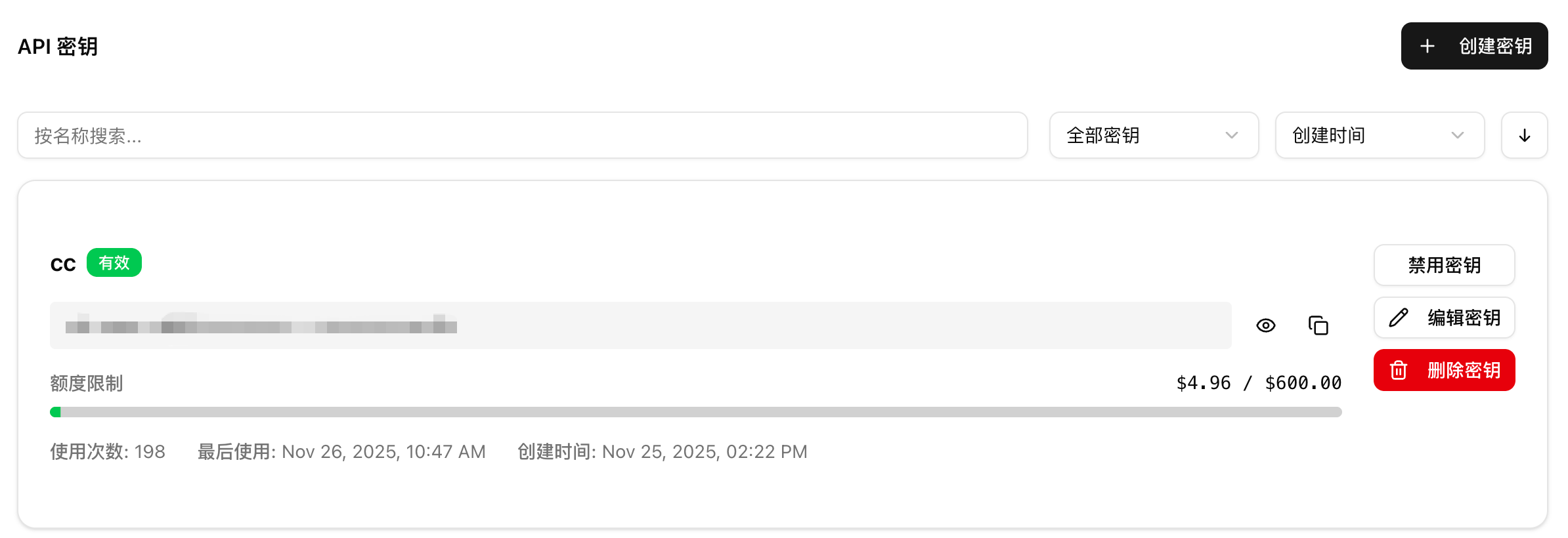
After successful login, you need to create an API key (Token) to call Cubence services.
Access the Key Management Page:
- Log in and enter the console homepage
- Find "Key Management" in the menu
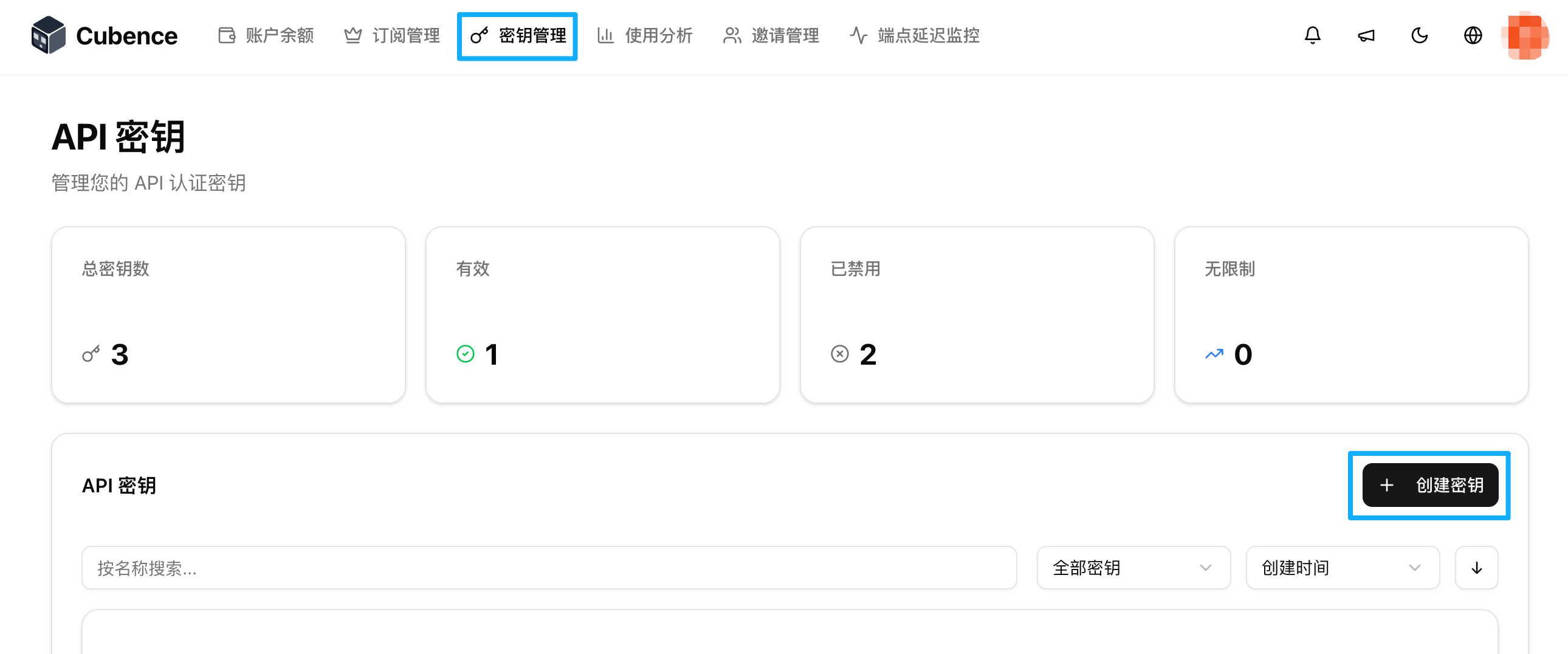
Create a Key:
- Click the "Create Key" button
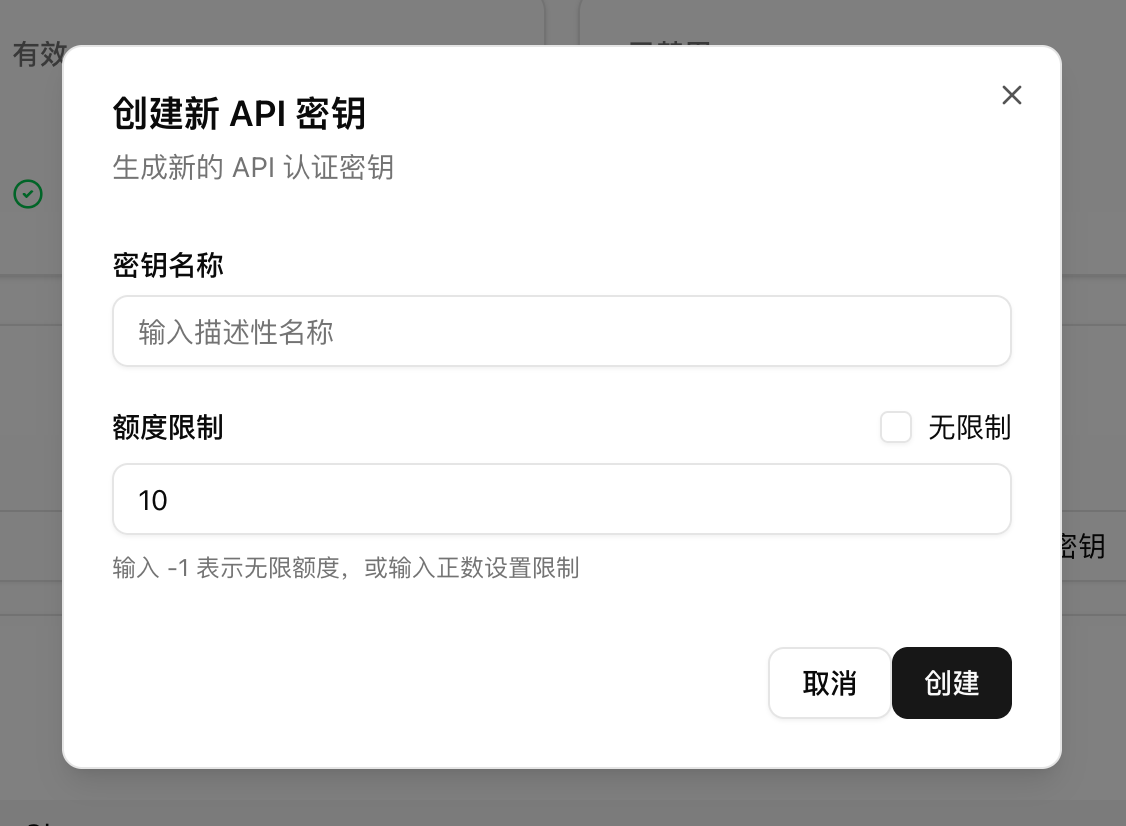
- Fill in the key information:
- Key Name: Set an easily identifiable name for the key
- Quota Limit: Limit the maximum usage quota for this key
- Click "Create" to complete
Configure CLI Tools
Cubence supports multiple mainstream AI CLI tools. Choose what you need:
Having Issues?
Check the FAQ, or use one of these support channels:
- Pre-sales Telegram group: ask about integration, models and pricing.
- After-sales Telegram group entry: verify your order number with the bot, then follow its instructions to join the group.
- After-sales QQ group: get after-sales and technical support.