

Updated:
gpt-image-2 (OpenAI)
OpenAI's image generation model, supporting both text-to-image and image-to-image (edits). The request format is identical to OpenAI's official API — just point the host to https://api-lb.cubence.ai and use a platform-issued API key.
Authentication
All requests authenticate via Authorization: Bearer <API_KEY>. Create your API key in the console under "API Key Management".
Base URL and routes
The examples use the Mainland China route, https://api-lb.cubence.ai/v1. For global use, set the Base URL to https://api.cubence.ai/v1; outside Mainland China, you can use https://api.cubence.com/v1. Keep /v1 and any request path when switching routes. See API endpoints and Base URL configuration.
Prerequisites
Before calling the API, you need to assign the gpt-image-2 share group to your API key in the console. Otherwise the request will return a 400 error.
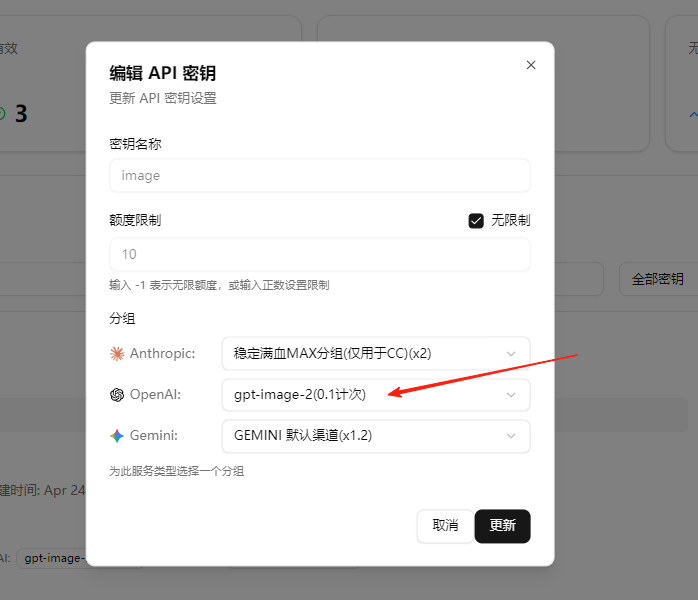
Go to console → API Key Management → select your key → click Edit, then in the dialog find the OpenAI row and pick gpt-image-2(0.1 per call) from the dropdown. Click Update to save.
Note
API keys without a configured share group will fail when calling image endpoints. You need to set the share group separately for each service type (Anthropic / OpenAI / Gemini).
Text-to-Image (Generations)
Endpoint
POST https://api-lb.cubence.ai/v1/images/generationsRequest body uses Content-Type: application/json, identical to OpenAI's official spec.
Example
curl -sS "https://api-lb.cubence.ai/v1/images/generations" \
  -H "Authorization: Bearer <API_KEY>" \
  -H "Content-Type: application/json" \
  -d '{
    "model":"gpt-image-2",
    "prompt":"a gray tabby cat in an orange scarf hugging an otter",
    "n":1,
    "size":"1024x1024"
  }'
Response
{
  "created": 1735200000,
  "data": [
    {
      "b64_json": "iVBORw0KGgoAAAANSUhEUgAA..."
    }
  ]
}
gpt-image-* models always return Base64 — no URL is returned.
Image-to-Image / Edit (Edits)
Edit or repaint an existing image.
Endpoint
POST https://api-lb.cubence.ai/v1/images/editsRequest format is multipart/form-data, identical to OpenAI's official spec.
Example
curl -sS "https://api-lb.cubence.ai/v1/images/edits" \
  -H "Authorization: Bearer <API_KEY>" \
  -F "model=gpt-image-2" \
  -F "image=@./cat.png" \
  -F 'prompt=replace the background with a spring afternoon under cherry blossoms' \
  -F "n=1" \
  -F "size=1024x1024"
Response
{
  "created": 1735200000,
  "data": [
    {
      "b64_json": "iVBORw0KGgoAAAANSUhEUgAA..."
    }
  ]
}
The response structure is identical to text-to-image: data[].b64_json contains the Base64-encoded image data.
Size limits
The total multipart/form-data request body is capped at 50 MB. We recommend keeping each image under 25 MB.
Using with Cherry Studio
Cherry Studio is a desktop AI client that supports custom OpenAI providers, letting you use gpt-image-2 directly inside the app.
Configure the New API provider
Open Cherry Studio, go to Settings → Model Providers, and find New API in the provider list on the left.
On the right panel, fill in:
- API Host:
https://api-lb.cubence.ai/v1 - API Key: your platform key, e.g.
sk-user-xxxxxxxx
Manually add the gpt-image-2 model
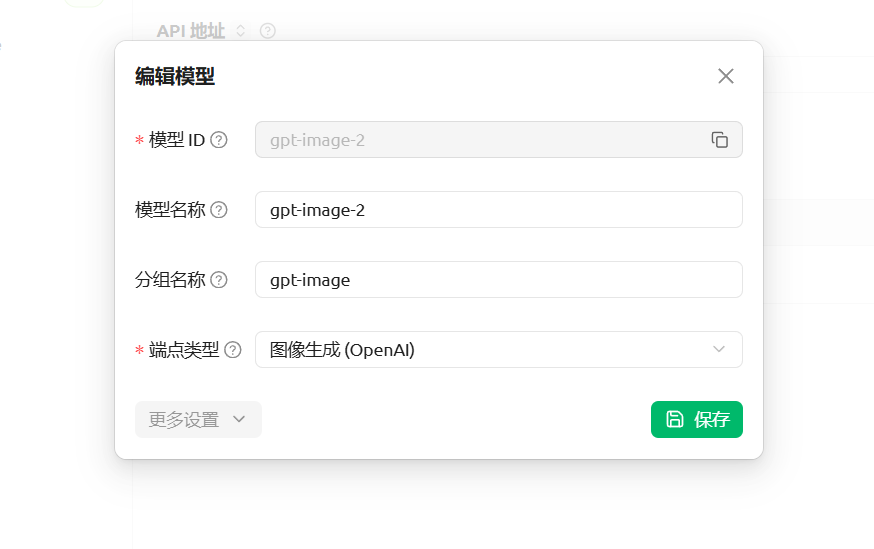
In the Models section, click the + button on the top right to manually add a model. Fill in:
- Model ID:
gpt-image-2 - Model Name:
gpt-image-2 - Group Name:
gpt-image(any name; used for organization) - Endpoint Type: select Image Generation (OpenAI)
Important
The endpoint type must be set to Image Generation (OpenAI), otherwise the model will be called as a chat model and the request will fail.
Click Save to finish.
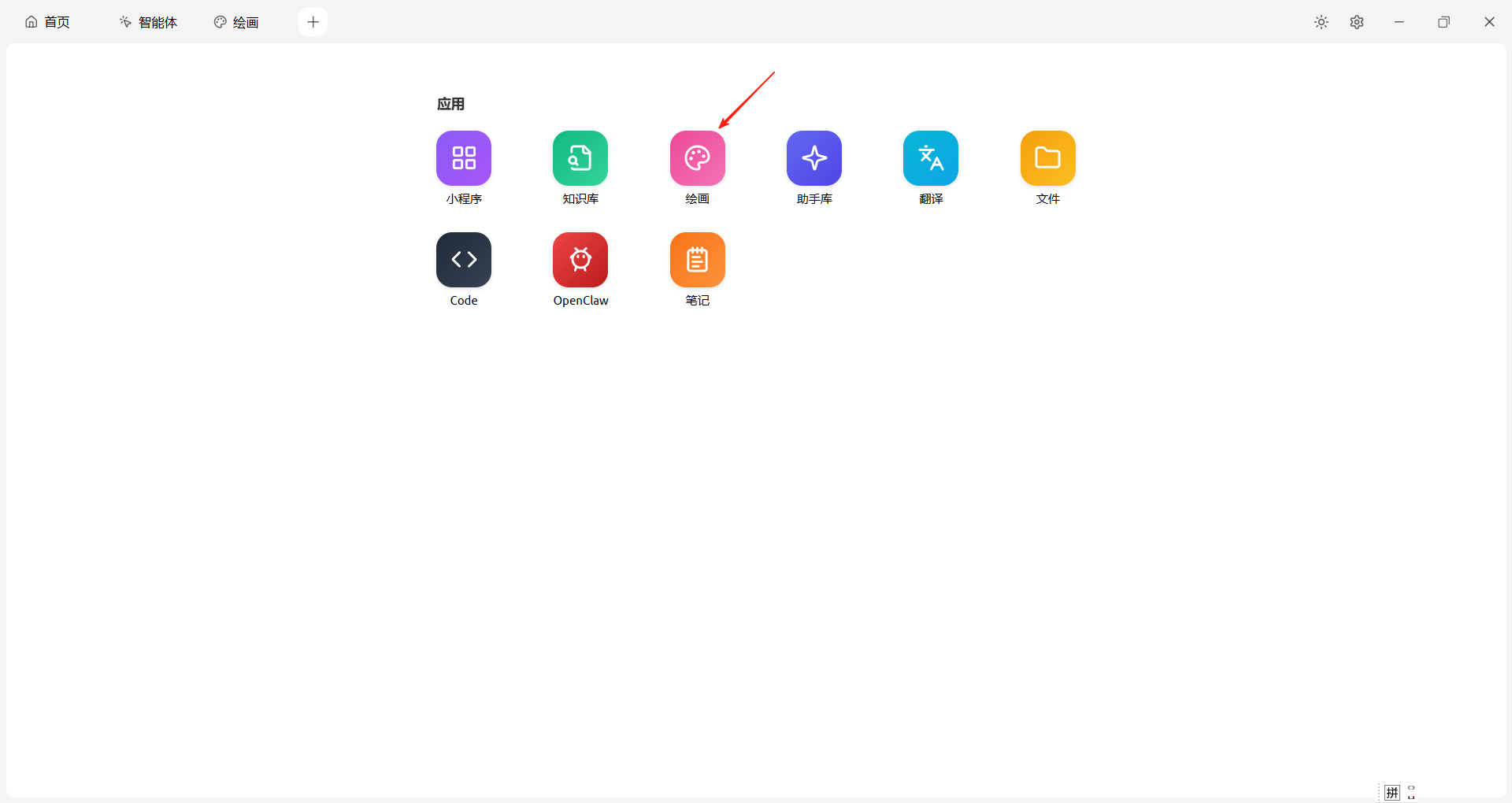
Open the “Painting” workspace
Go back to the home screen and click the Painting icon in the Apps list to enter the image workspace.
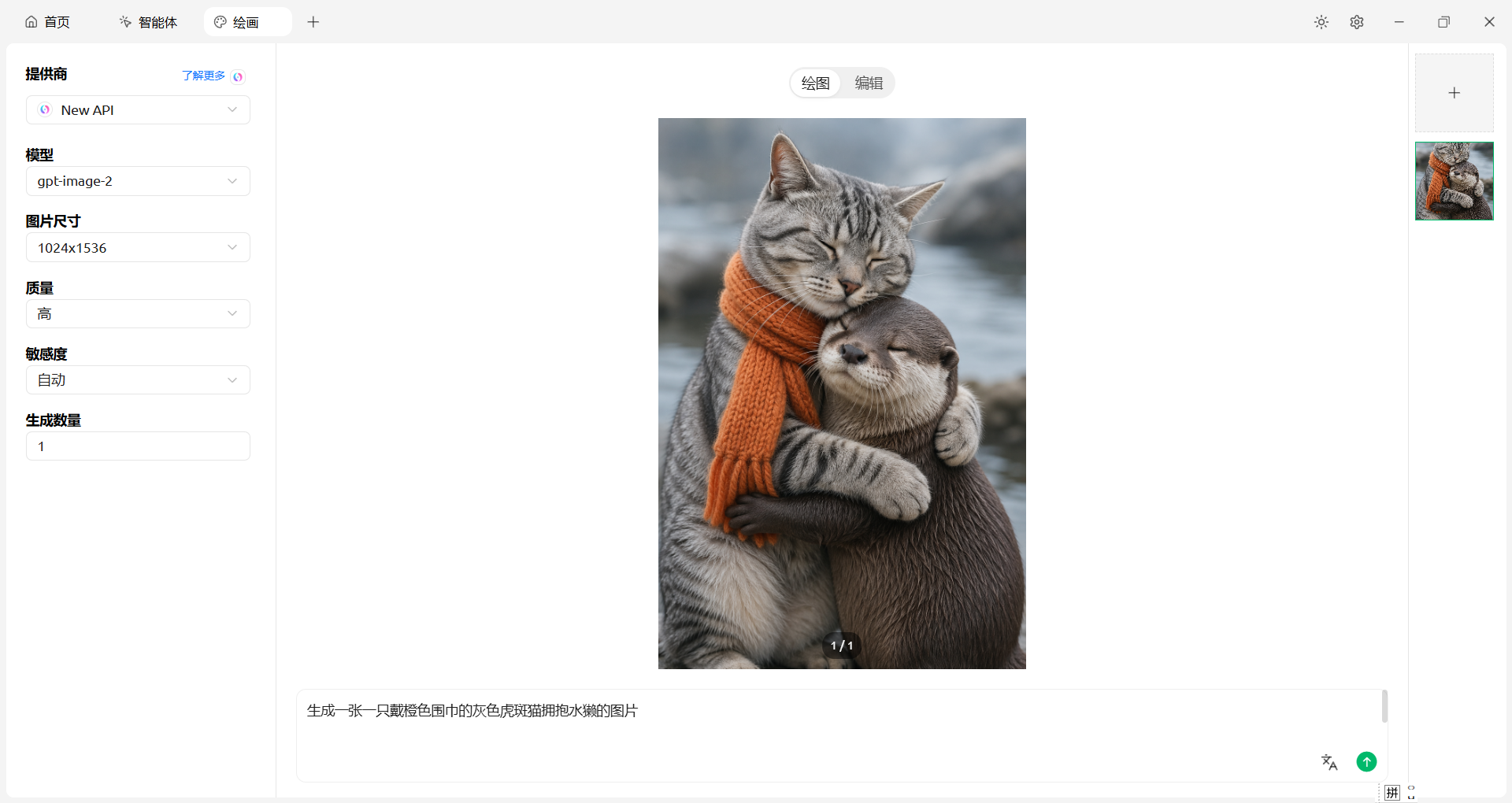
Pick the New API provider and start drawing / editing
In the painting workspace, switch the provider selector at the top to New API. Then you can use:
- Draw: enter a prompt to generate a new image (calls
/v1/images/generations) - Edit: upload a source image and enter an instruction to repaint it (calls
/v1/images/edits)
Pricing
Billed by image size and quantity. See Pricing for details.